
USER MANUAL
How Our Web App Works
Follow this step-by-step guide to create your account, explore projects, purchase points, submit applications, manage notifications, and maintain your profile.
Step 01
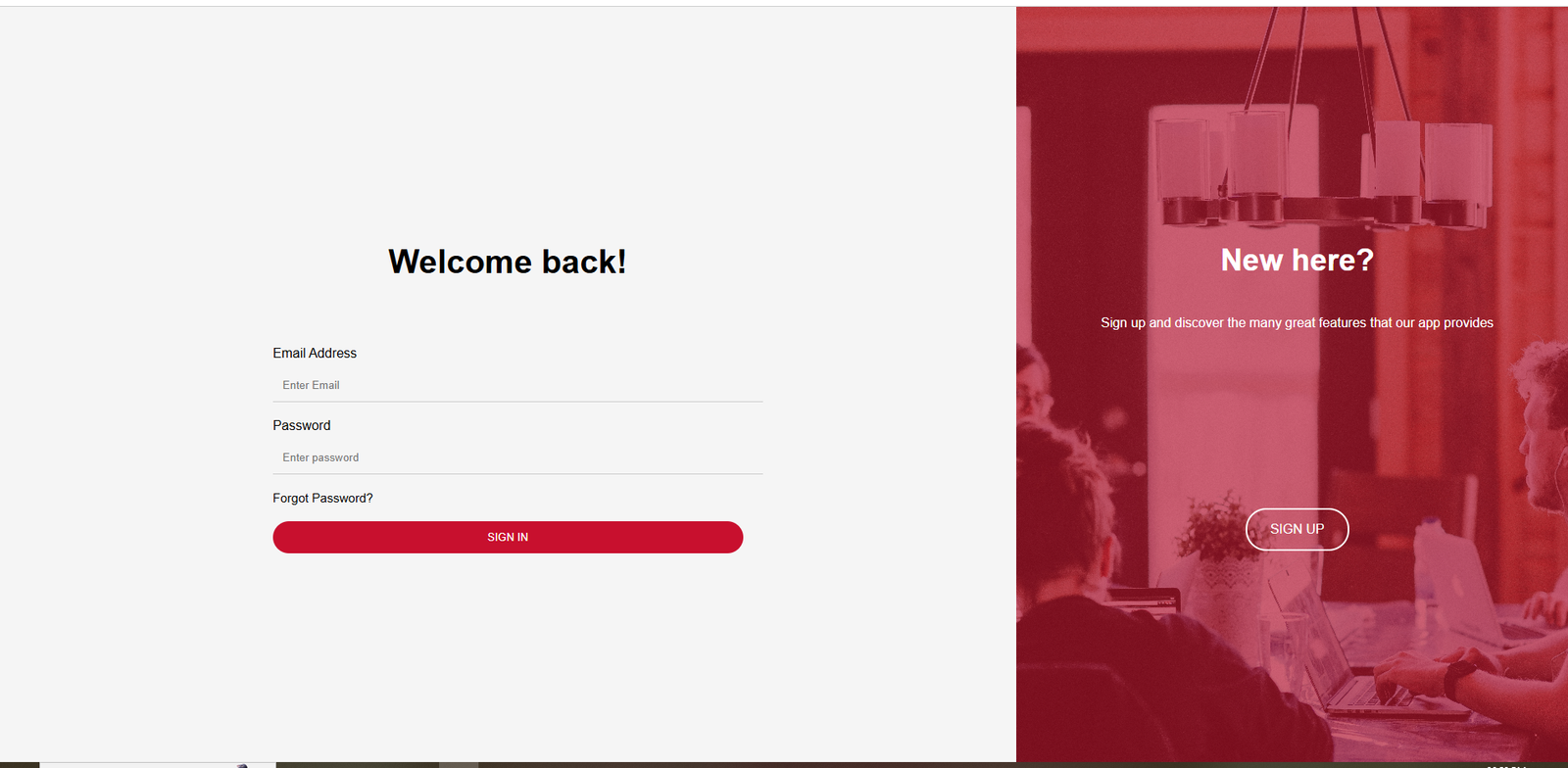
Create Account & Login
Start by creating your account. Once registered, use your email address and password to sign in and access the platform.
How to use
- Click Create Account.
- Enter the required information.
- Submit the registration form.
- Return to the login screen and enter your credentials.
- Click Sign In.
Step 02
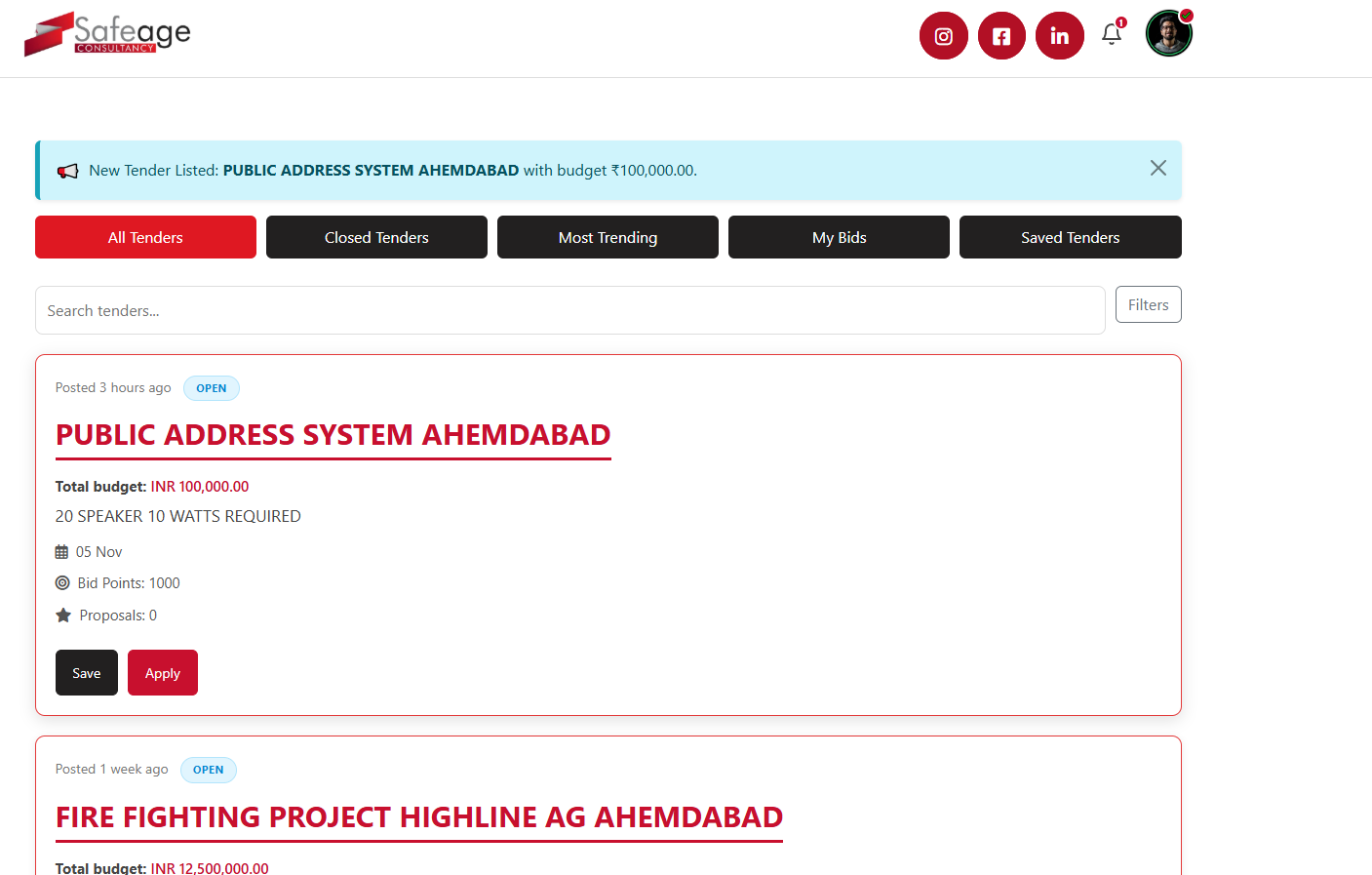
Browse Available Projects
After logging in, browse the available project listings and review the information shown for each project.
Guideline
- Review the project title and budget.
- Check the project details carefully.
- Select a project that matches your requirements.
- Use the project action buttons to continue.
Step 03
Purchase Points
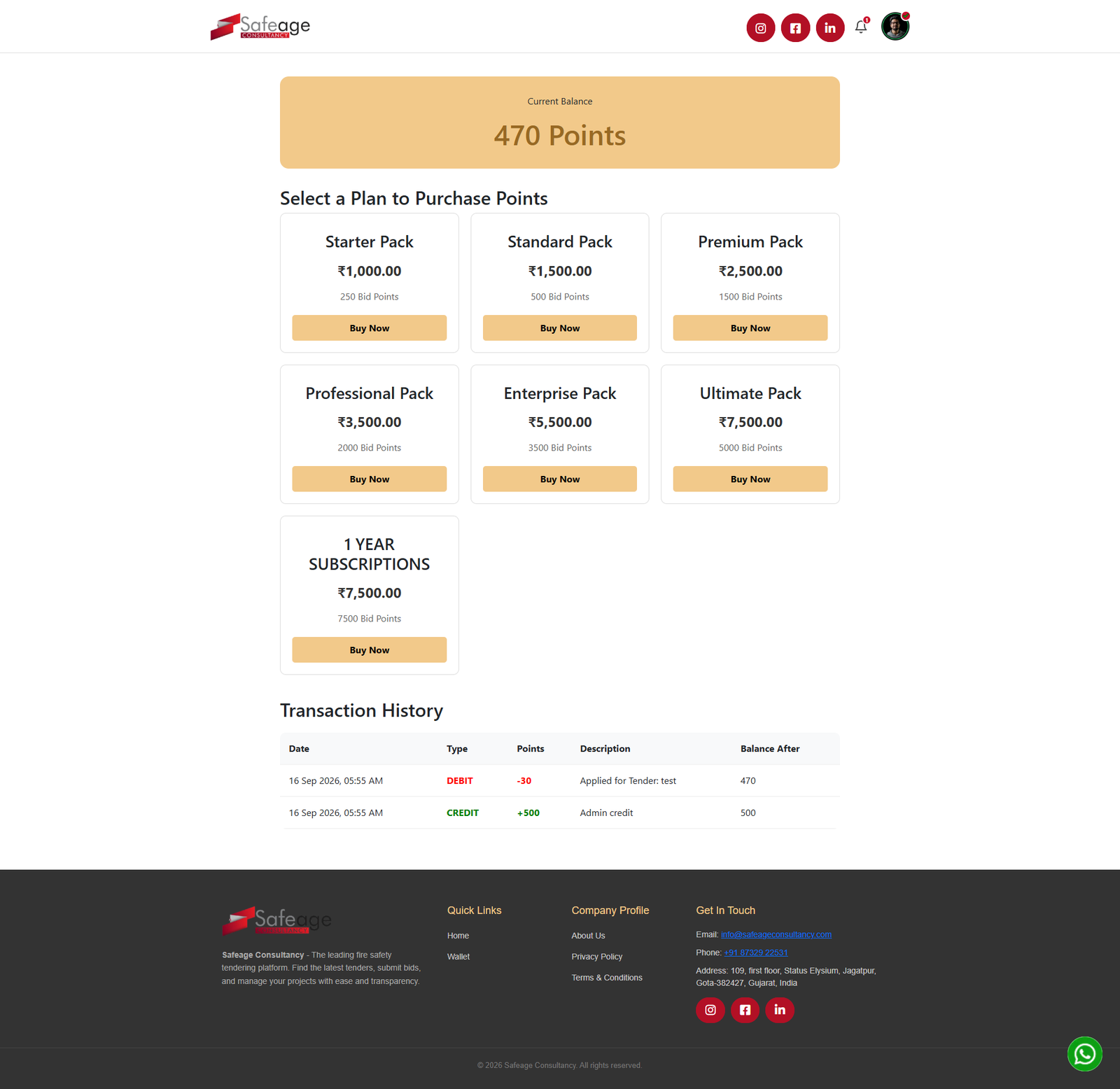
Points are used when applying for projects. Select a points package from the available options and complete the purchase.
Guideline
- Open the points section.
- Check your current point balance.
- Review the available packages.
- Select the package you need.
- Complete the purchase process.
Step 04
Change Password
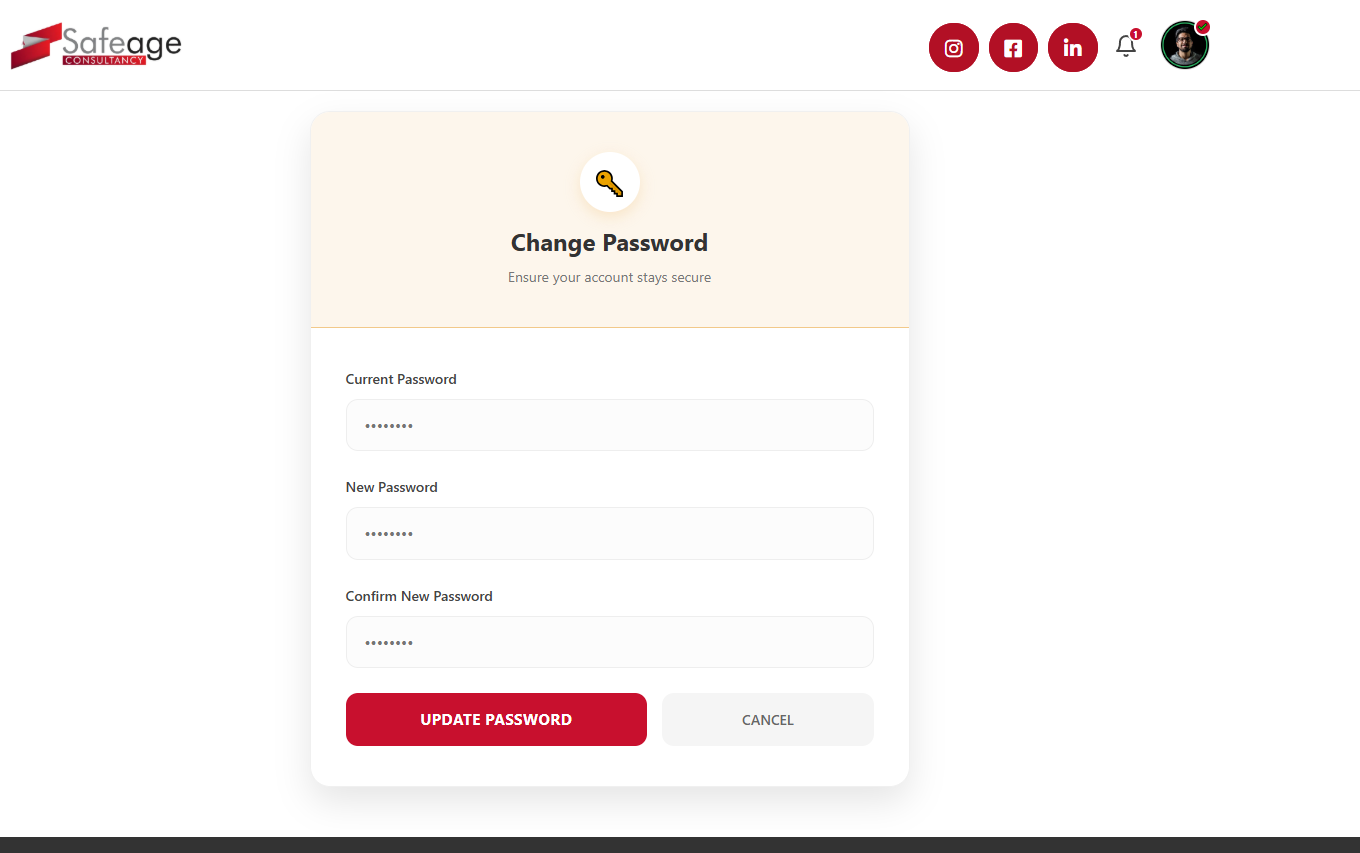
Keep your account secure by changing your password whenever required from the Change Password section.
Guideline
- Enter your current password.
- Enter your new password.
- Confirm the new password.
- Click Update Password.
Step 05
Apply for a Project
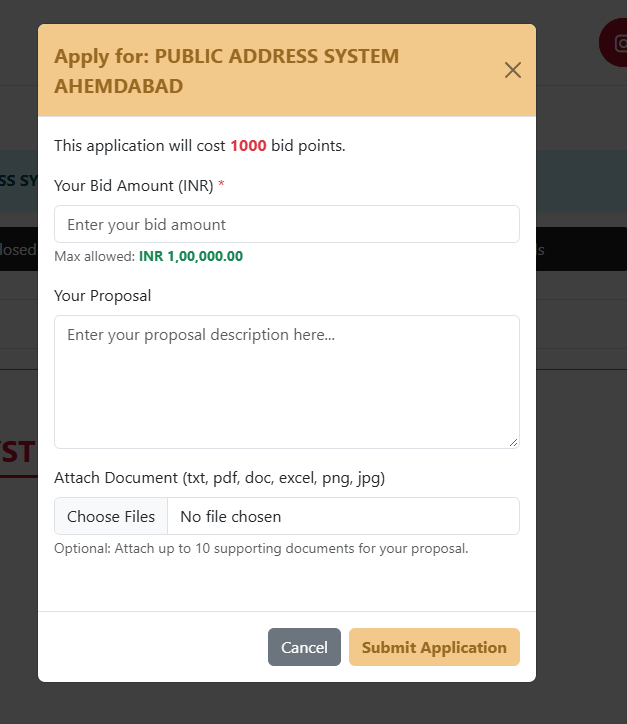
When you find a suitable project, submit your application with your bid amount, proposal, and supporting documents if required.
Guideline
- Open the project and click Apply.
- Review the points required.
- Enter your bid amount.
- Write your proposal.
- Attach supporting documents if needed.
- Click Submit Application.
Step 06
Check Notifications
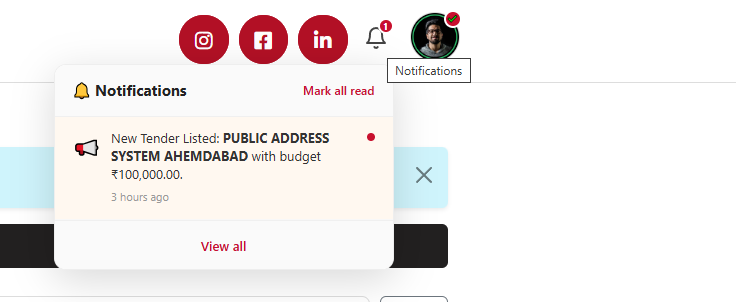
Use notifications to stay informed about new project activity and important updates related to your account.
Guideline
- Click the notification icon.
- Review new notifications.
- Open a notification to view its details.
- Use Mark all as read when appropriate.
- Click View all for the complete list.
Step 07
Manage Your Profile
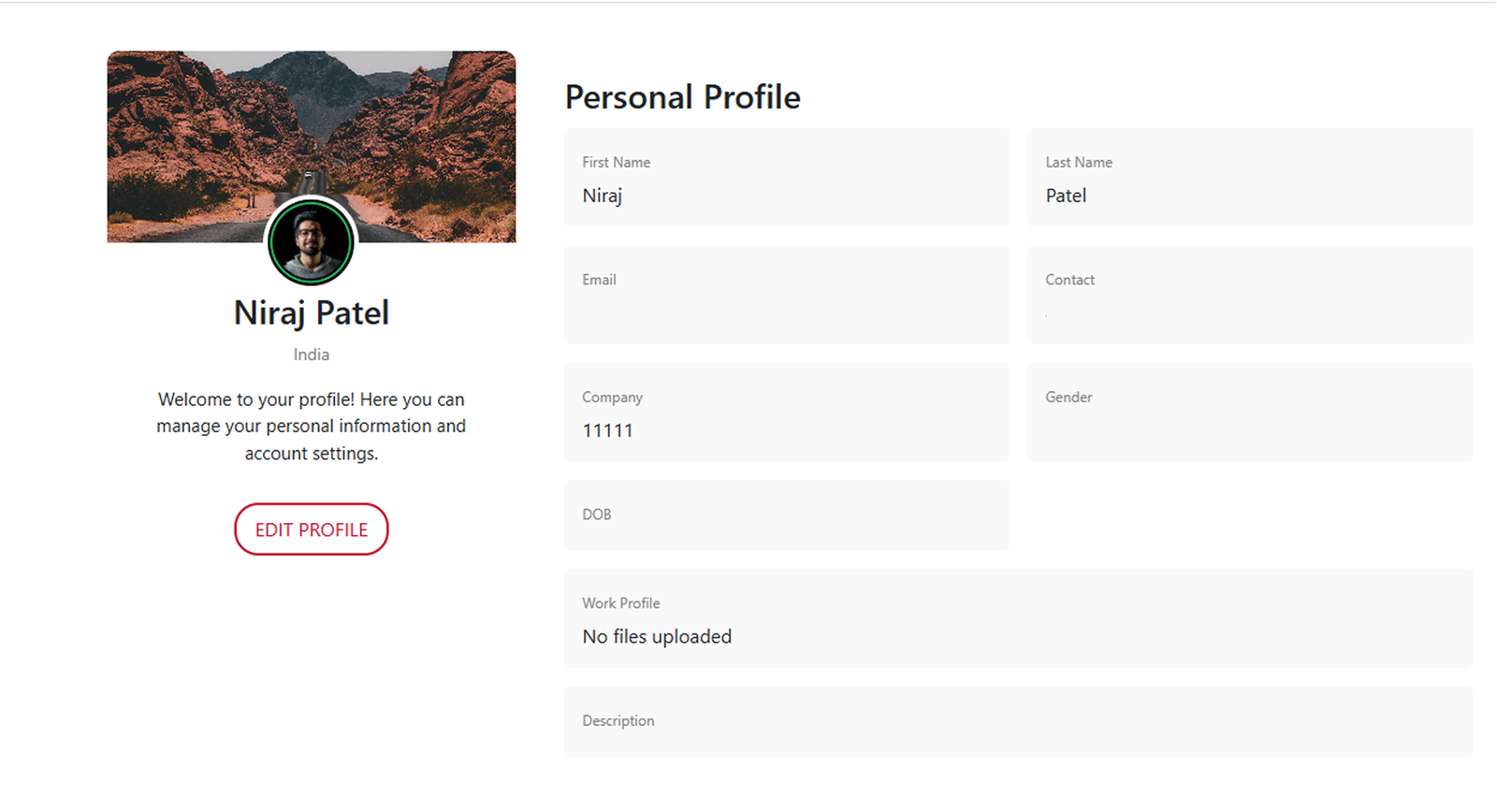
Keep your personal and professional information updated so your profile contains the latest details.
Guideline
- Open your profile.
- Review your personal information.
- Update your profile details when required.
- Use Edit Profile to make changes.
- Save your updated information.
Ready to Get Started?
Create your account, explore available projects, and submit your first application.
Create Account Login